Claude Code on WSL
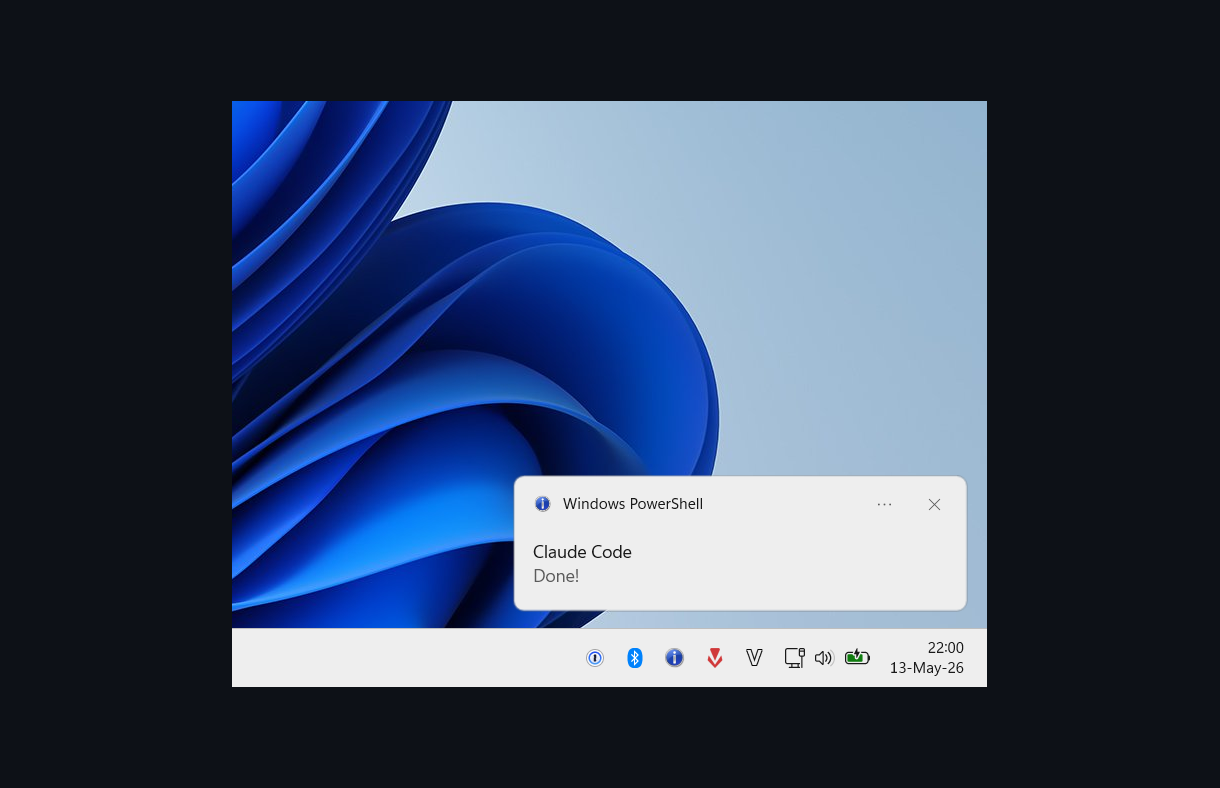
Claude Code WSL2 — “Needs Your Input” Windows Notification
Problem
When Claude Code finishes a long task on WSL2, needs permission, or a background agent finishes, the terminal gives no visual signal unless you are watching it.
This hook uses Claude Code’s Notification event, scoped by matcher:
idle_prompt— Claude is done and waiting for your next promptpermission_prompt— Claude needs you to approve a tool useagent_completed— a background agent finishes or failsagent_needs_input— a background agent starts waiting on your input
All notifications are suppressed when Windows Terminal is the foreground window, so they don’t interrupt you when you’re already watching the output.
agent_completed and agent_needs_input require Claude Code v2.1.198 or later and only
fire while agent view is open. If your Claude Code version is older, keep only
idle_prompt and permission_prompt.
How It Works
- Claude Code fires the
Notificationhook for a matched notification type. - The hook runs
~/bin/claude-notify, a bash script that calls Windows PowerShell directly from WSL via/mnt/c/Windows/System32/WindowsPowerShell/v1.0/powershell.exe. The title and message travel base64-encoded, so no quote in them can change the script. That includes the typographic’, which PowerShell also treats as a quote. - PowerShell checks the foreground window — if Windows Terminal is active, it exits silently.
- Otherwise, it creates a
NotifyIcon(system tray icon) and shows a balloon tip for 5 s. - A WinForms message loop keeps the process alive until the balloon is dismissed or clicked, or for at most 12 s if Windows never reports it closed.
- Clicking the balloon restores the Windows Terminal window (if minimised) and brings
it to the foreground via
ShowWindow+SetForegroundWindow. - On dismiss or click, the message loop exits, the icon is disposed, and the process ends.
Setup
Step 1: Install the script
Requires WSL2 with Windows interoperability, Windows PowerShell, and Windows Terminal. From the cloned repository, install the script:
mkdir -p ~/bin
if [ -f ~/bin/claude-notify ]; then
  cp --backup=numbered ~/bin/claude-notify ~/bin/claude-notify.bak
fi
install -m755 bin/claude-notify ~/bin/claude-notify
The default PowerShell path assumes Windows is mounted at /mnt/c. For a custom
mount, set CLAUDE_NOTIFY_POWERSHELL to the full powershell.exe path in the
environment used to launch Claude Code.
Step 2: Add the hooks
Back up ~/.claude/settings.json first; see maintenance. Merge
these entries into its existing hooks.Notification array, preserving other hooks.
The example below is a complete JSON object, not a replacement for your settings:
{
  "hooks": {
    "Notification": [
      {
        "matcher": "idle_prompt",
        "hooks": [
          {
            "type": "command",
            "command": "\"$HOME/bin/claude-notify\" \"Claude Code\" \"Done!\"",
            "async": true,
            "timeout": 15
          }
        ]
      },
      {
        "matcher": "permission_prompt",
        "hooks": [
          {
            "type": "command",
            "command": "\"$HOME/bin/claude-notify\" \"Claude Code\" \"Needs your input!\"",
            "async": true,
            "timeout": 15
          }
        ]
      },
      {
        "matcher": "agent_completed",
        "hooks": [
          {
            "type": "command",
            "command": "\"$HOME/bin/claude-notify\" \"Claude Code\" \"Background agent completed\"",
            "async": true,
            "timeout": 15
          }
        ]
      },
      {
        "matcher": "agent_needs_input",
        "hooks": [
          {
            "type": "command",
            "command": "\"$HOME/bin/claude-notify\" \"Claude Code\" \"Background agent needs input!\"",
            "async": true,
            "timeout": 15
          }
        ]
      }
    ]
  }
}
idle_prompt fires when Claude is done and waiting. permission_prompt fires when Claude
is blocked on a tool-approval prompt. The agent matchers are useful for background
subagents supported by your Claude Code version. All commands exit silently if
Windows Terminal is the foreground window, so notifications only appear when you’re working in another window.
Why
async: true?The PowerShell process stays alive in its WinForms message loop (
[Application]::Run()) until the balloon is clicked, dismissed, or times out (about 5 s; the script exits after 12 s at most, below the 15 s hook timeout). If the hook ran synchronously, Claude Code would block for that entire time — the UI appears frozen and input is unresponsive. Native async hooks let Claude Code continue immediately while it manages the notification process in the background. The quoted$HOMEpath works for different usernames and home directories containing spaces. These are shell-form commands, as described in the hook reference.
Run /hooks and select Notification to confirm the hook is registered. If Claude Code
doesn’t pick up the settings change within a few seconds, restart the session.
Running Codex too? The same
~/bin/claude-notifyscript is reused for Codex CLI, but it’s wired up through Codex’s top-levelnotifykey (not Claude hooks) and shows Codex’s actual last reply in the balloon. See codex-notify.
Result
When Windows Terminal is not the active window, a balloon tip appears in the system tray with the title Claude Code — Done! when Claude is waiting for your next prompt, Needs your input! when it needs approval, or an agent-specific message for background work. Clicking the balloon restores and focuses Windows Terminal. No notification fires if you are already looking at the terminal.
Long-running tmux jobs
Claude Code hooks report Claude lifecycle events, but a command left running in tmux may finish after the Claude turn ends. Install the companion helper to notify on process exit:
install -Dm755 bin/tmux-notify-run ~/bin/tmux-notify-run
Run a detached job by putting its command after --:
tmux-notify-run bird-eval \
  --title "Claude Code: BIRD evaluation" \
  --log evaluation/results/bird-eval.log \
  --cwd ~/code/text2sql-agent \
  -- ./evaluation/scripts/run_eval.sh
The helper preserves command arguments and the caller environment, streams output to tmux
and the log, records the exit code under
~/.local/state/tmux-notify-run/<session>/status, and sends a Windows notification on
success or failure. It uses claude-notify --force, so long-running jobs still notify
while Windows Terminal is in the foreground; normal Claude and Codex completion hooks keep
their foreground suppression.
The runner re-execs the command with a filtered environment, so it does not reproduce an
interactive shell’s command resolution. Use an executable on the caller’s PATH, an absolute path, or a path relative to
the job’s working directory. Shell aliases and functions are not carried over.
wsl --shutdown or a Windows shutdown stops both the job and its tmux session before the
runner can record an exit code, leaving status stuck at running. Reconcile with:
tmux-notify-run --status          # unfinished jobs only; finished ones are counted
tmux-notify-run --status SESSION  # one job, whatever its state
A job is reported running while its tmux session or runner PID is alive, orphaned once
neither is, and unknown when meta has no PID yet (mid-startup — deliberately no claim).
Detecting an orphan rewrites that job’s status file, so the state stops lying after one
check.
Troubleshooting
No balloon appears
- Run
bash scripts/doctor.shfrom the cloned repository. It flags an outdated or non-executable script, a missing PowerShell path, and hooks withoutasync. - Confirm
~/bin/claude-notifyexists and is executable:ls -l ~/bin/claude-notify - Test manually:
~/bin/claude-notify "Test" "Hello" - Run
/hooksand confirmNotificationhas entries foridle_promptandpermission_prompt. - Check Windows notification settings — balloon tips require “Get notifications from apps” to be enabled for the app, and Focus Assist must not be blocking them.
UI freezes for several seconds when Claude finishes a task
- The hook is running synchronously (missing
"async": true). - Ensure each notification command hook has
"async": trueand a timeout longer than the script’s 12 s limit.
Balloon tip flashes and disappears instantly
- The WinForms message loop (
Application.Run()) keeps the PowerShell process alive until the balloon is clicked or times out. If the process exits immediately, check that bothadd_BalloonTipClickedandadd_BalloonTipClosedhandlers callApplication.Exit().
Click does not focus Windows Terminal
- Windows restricts
SetForegroundWindowto prevent background processes from stealing focus. The balloon-click event fires in the context of the notification click, which satisfies the restriction in most cases. If it still doesn’t work, try clicking the taskbar button instead. - Make sure Windows Terminal is running (not just WSL in another host).
Verify and remove
Test the installed script, including while Windows Terminal is focused:
~/bin/claude-notify "Test" "Notification setup works" --force
Then test without --force: it should stay silent when Windows Terminal is focused.
Use /hooks to confirm the entries are loaded and trigger a matching event to
check the full integration. A manual balloon test alone does not verify the hook.
To remove, delete only the handlers calling claude-notify from
hooks.Notification and restart Claude Code. Keep unrelated handlers. Keep the
script if Codex or tmux-notify-run still uses it; otherwise remove it or restore
your previous copy:
rm -f ~/bin/claude-notify
For the tmux helper, let jobs finish before removing ~/bin/tmux-notify-run.
Keep its state directory and logs until you no longer need the results.